Sync Videos from a YouTube Playlist
Playlists give you precise control. You decide exactly which videos TubeZen summarizes by adding them to a YouTube playlist — and any video you add later is picked up automatically. You can use a playlist you already have or make a brand new one just for TubeZen.
This is one of three ways to get videos into TubeZen. See the overview: Getting Your YouTube Videos into TubeZen.
Before you start: connect YouTube
Playlists come from your own YouTube account, so you need to connect it once:
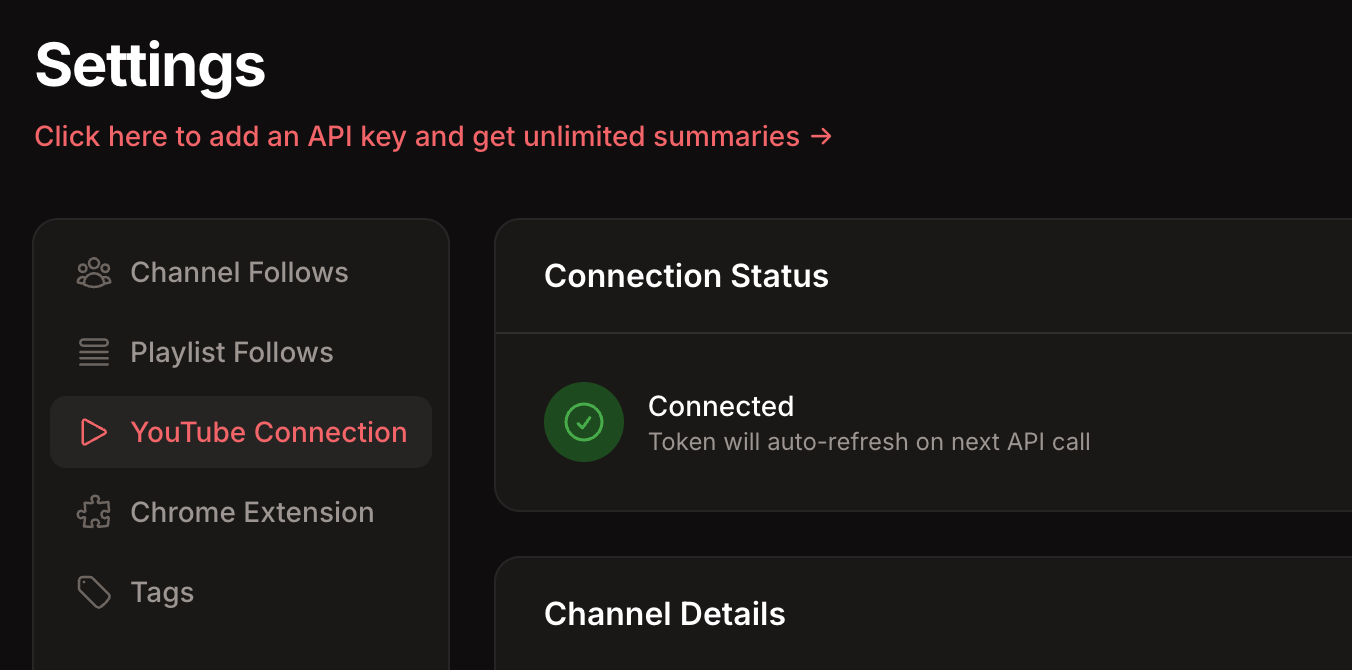
From your dashboard, open YouTube → Settings.
Select the YouTube Connection tab.
Click Connect YouTube Account and sign in with Google.
Once connected, you'll see your channel details and a green Connected status.
Option A: Use an existing playlist
If you already keep a YouTube playlist of videos you want to digest:
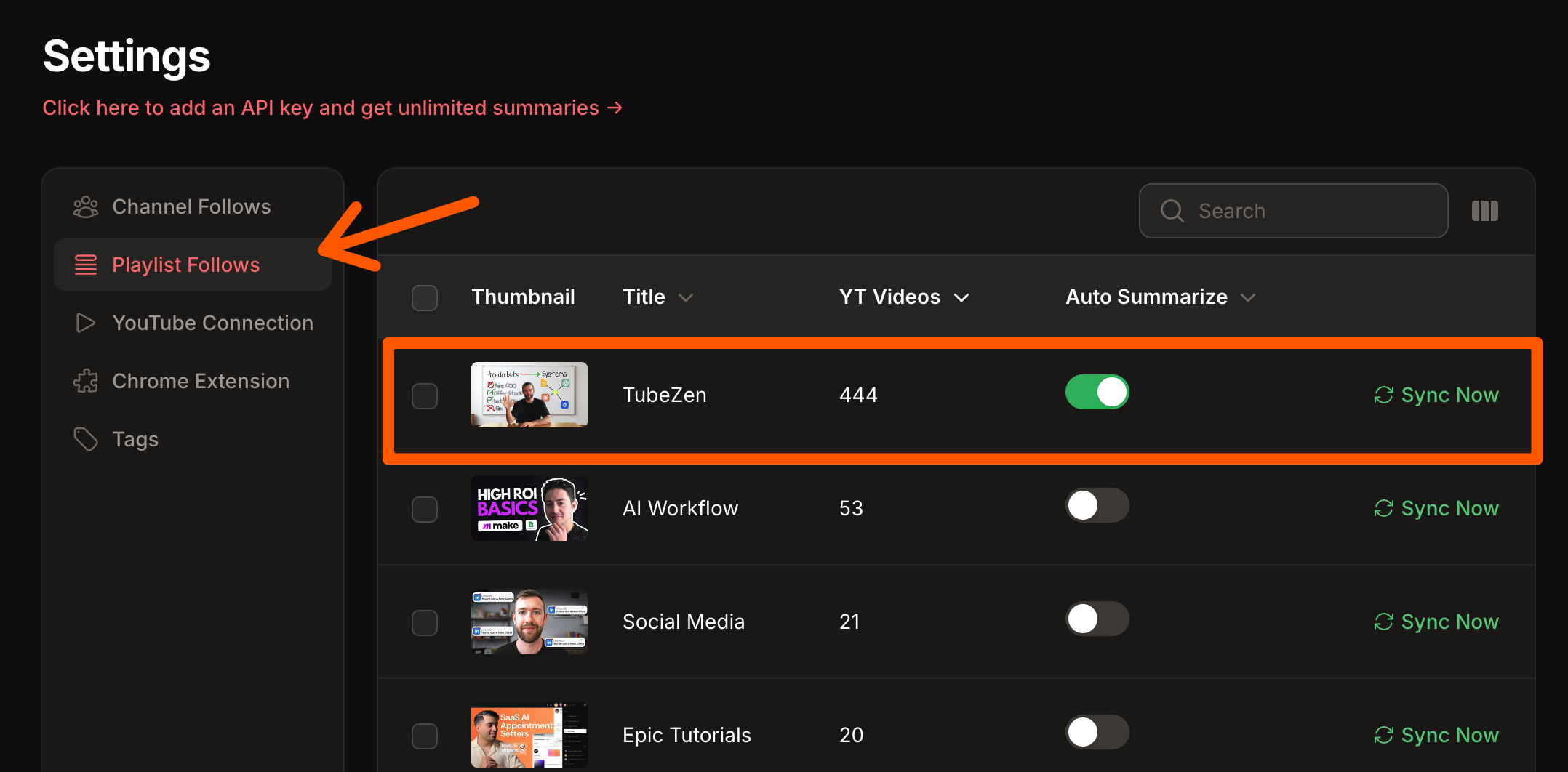
Go to YouTube → Settings → Playlist Follows.
Find the playlist in the list. (If you don't see it, see Refreshing your playlists below.)
Flip the Auto Summarize toggle on.
TubeZen immediately syncs that playlist and starts summarizing its videos. From then on, any new video you add to the playlist on YouTube is grabbed and summarized automatically.
Option B: Create a new playlist for TubeZen
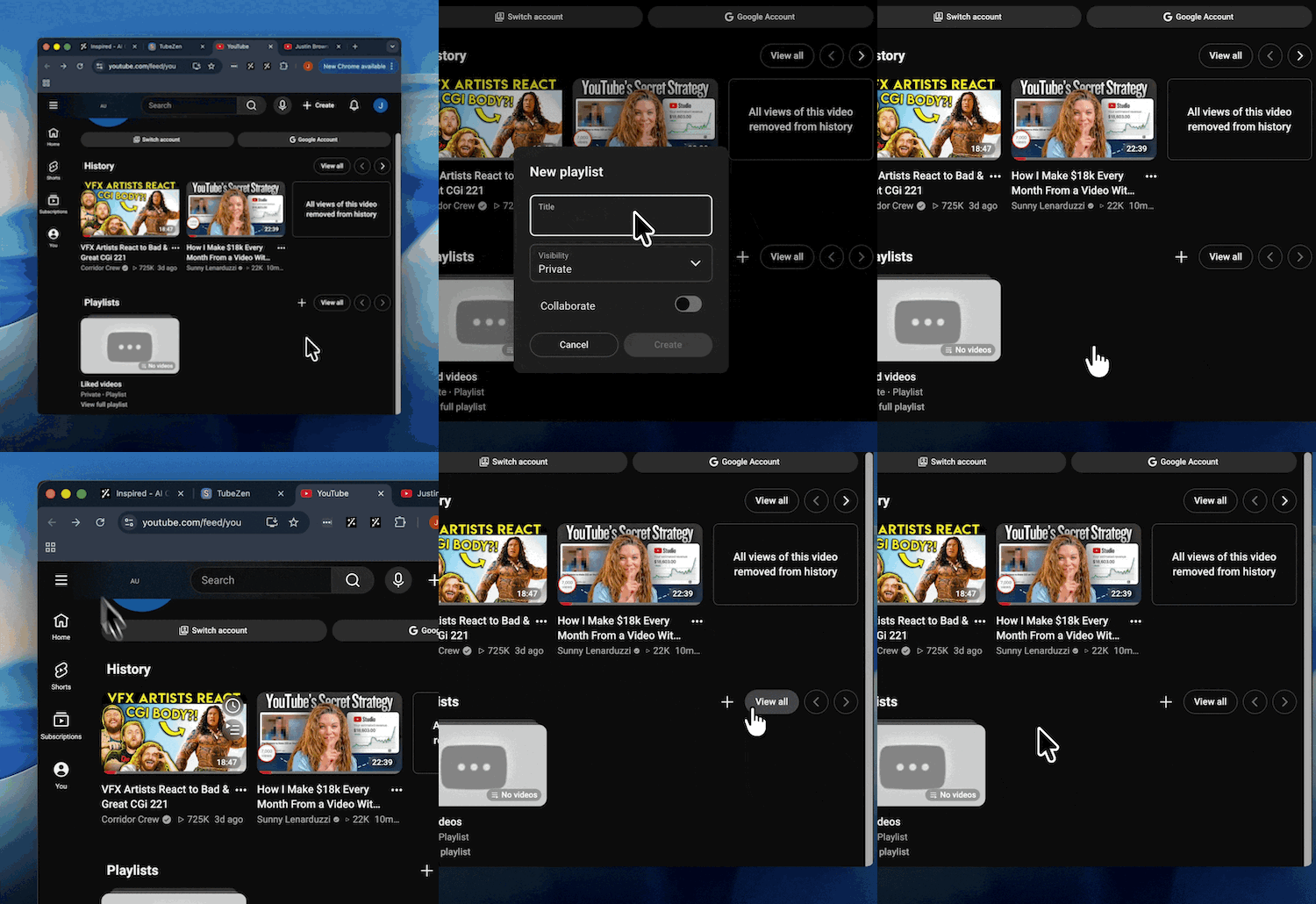
On YouTube, create a new playlist (for example, "TubeZen Queue") and add the videos you want summarized.
Back in TubeZen, go to YouTube → Settings → YouTube Connection and click Sync Playlists so your new playlist appears.
Go to the Playlist Follows tab and turn on Auto Summarize for that playlist.
Now it works like a queue: drop a video into the playlist on YouTube any time, and TubeZen summarizes it on the next sync.
Adding videos to your playlist
Once your playlist is connected and Auto Summarize is on, getting a video summarized is as simple as saving it to that playlist on YouTube — on your computer or your phone. It works the same wherever you watch.
On desktop
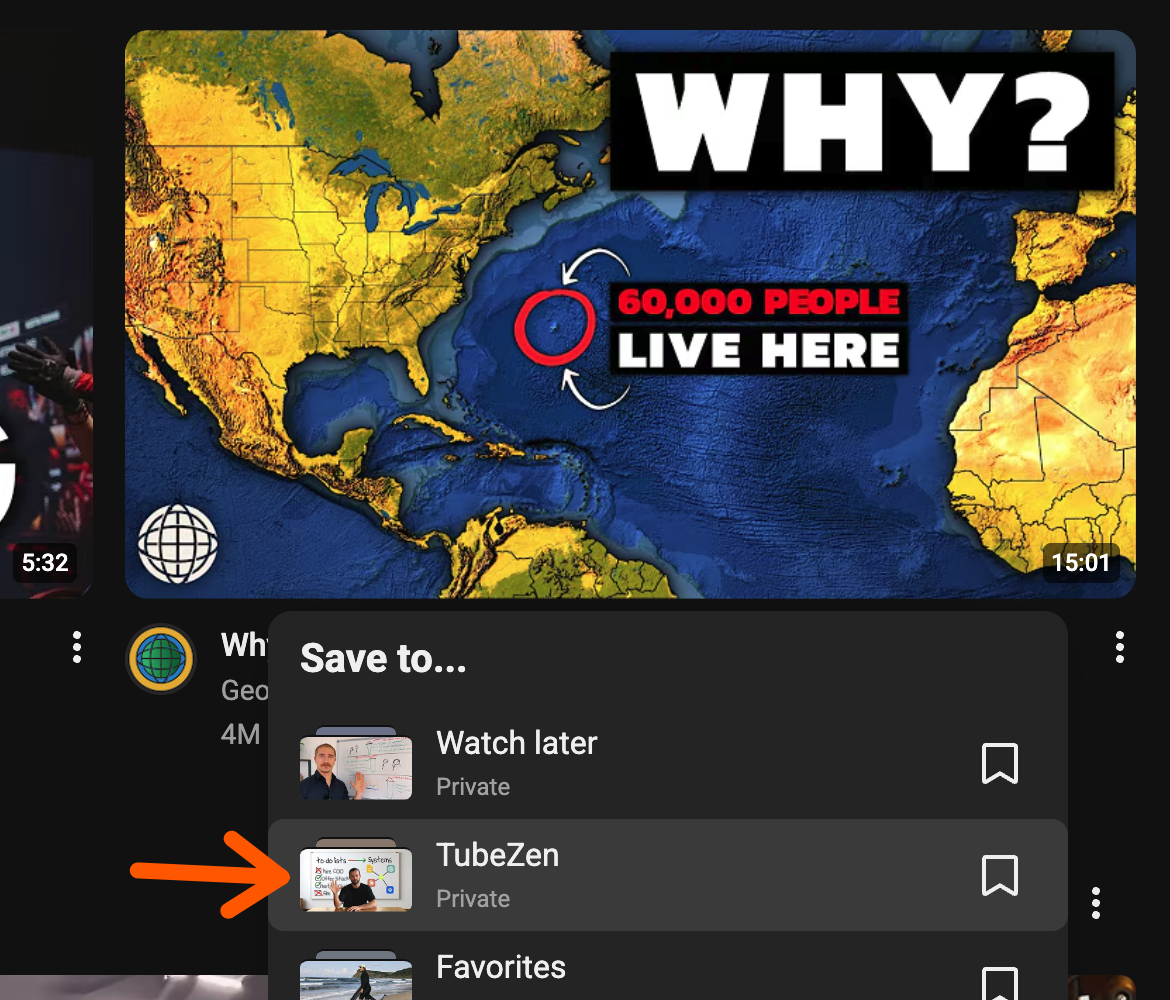
Click the three dots (⋮) on the video, then choose Save to playlist.
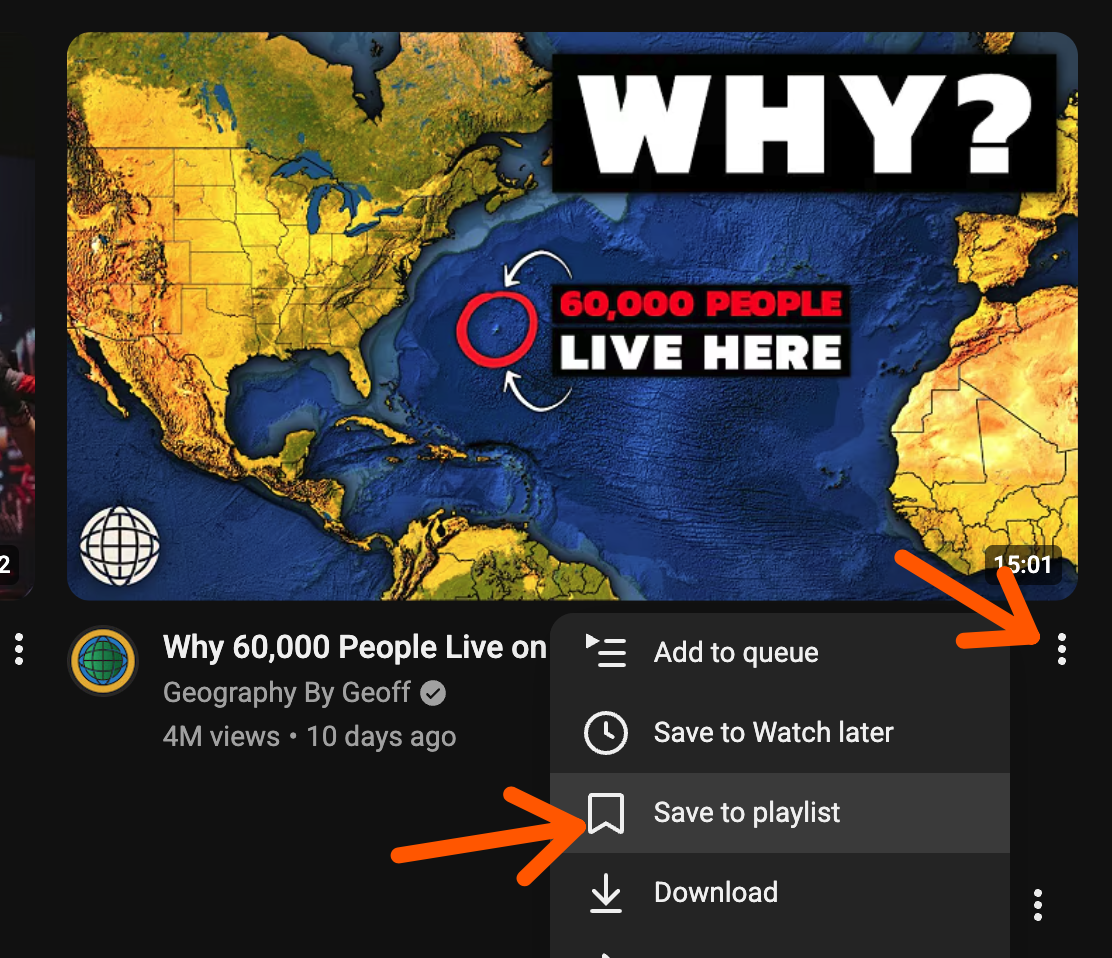
In the Save to… list, pick your TubeZen playlist.
On mobile
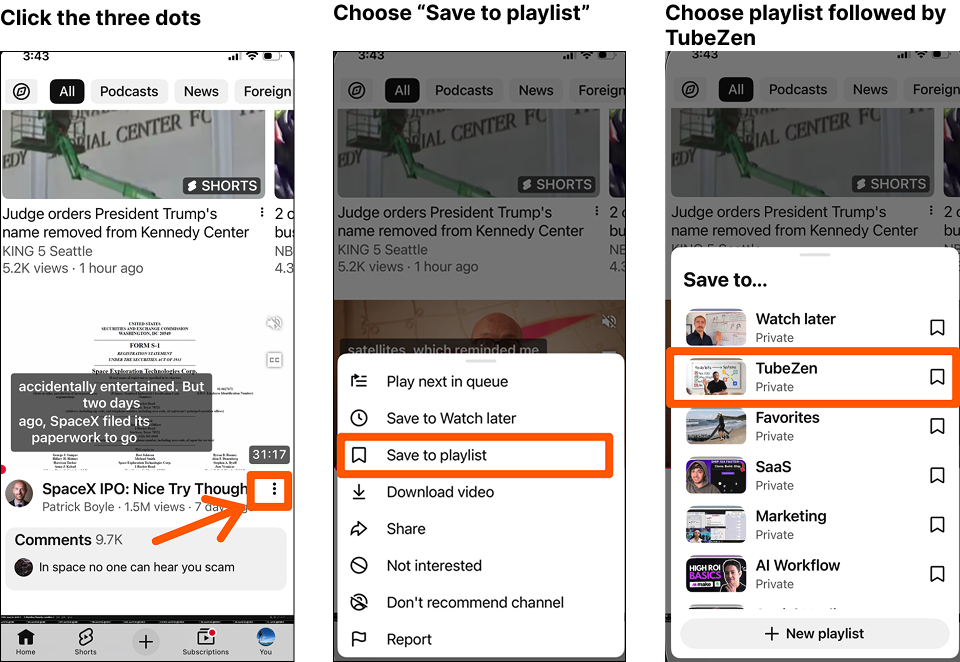
Tap the three dots next to the video.
Tap Save to playlist.
Choose your TubeZen playlist.
When does TubeZen pick it up?
TubeZen checks your connected playlists automatically every 15 minutes, so anything you save will be summarized without you doing a thing.
In a hurry? You can pull in new videos right away by clicking the Sync button — it's on both your dashboard and the New Videos screen. New summaries appear in New Videos when they're ready.
Refreshing your playlists
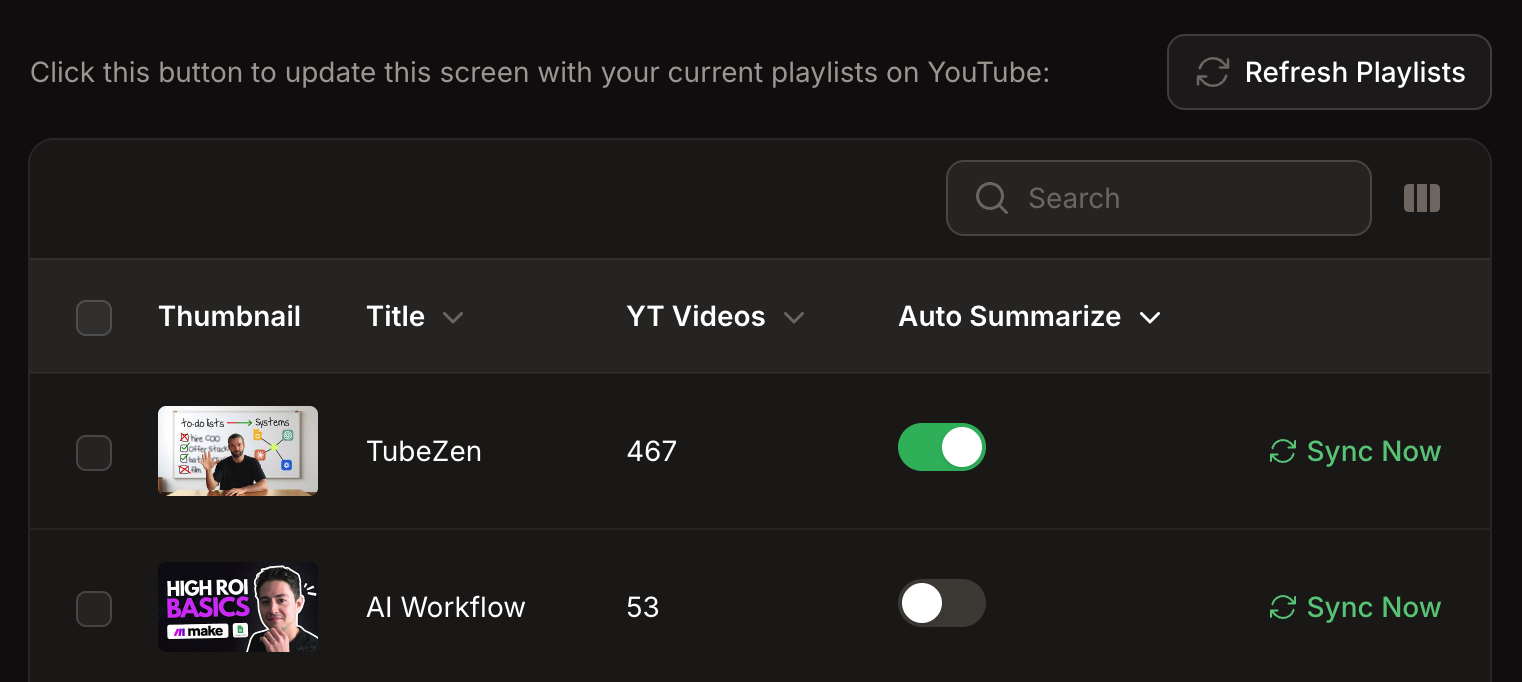
TubeZen pulls in your playlists when you first connect, but new playlists you create on YouTube won't appear until you refresh. On the YouTube Connectiontab, click Sync Playlists. You'll see a confirmation like "Synced playlists: 2 new, 5 updated."
To pull the latest videos from a single playlist right away, click Sync Nowon that playlist's row.
Organizing your playlists
The Playlist Follows tab has three views at the top:
All — every playlist from your YouTube account.
Auto Summaries — only the playlists you've switched on.
Ignoring — playlists you've chosen to hide.
Select multiple playlists with the checkboxes to use the bulk actions:
| Action | What it does |
|---|---|
| Enable Auto Summarize | Turns on automatic summaries for the selected playlists |
| Disable Auto Summarize | Stops automatic summaries (keeps the playlist in your list) |
| Ignore | Hides playlists you don't want cluttering the list |
| Unignore | Brings an ignored playlist back |
Good to know
Each video summarized uses one credit from your plan, unless you're on Bring Your Own Keys (unlimited).
Turning Auto Summarize off stops new videos from being grabbed but leaves the summaries you've already generated in place.
Just want everything from a creator? Following the channel is simpler than maintaining a playlist.