Saving Videos to Your Library
When a video is worth keeping, you save it. Saving moves a video out of your New Videos inbox and into your permanent Saved Videos library, where you can file it under a tag, search it, and come back to it any time. This guide covers saving a video, organizing with tags, and finding things later.
Saving a video
In your New Videos inbox, open a video and click the green Save button at the bottom of the card.
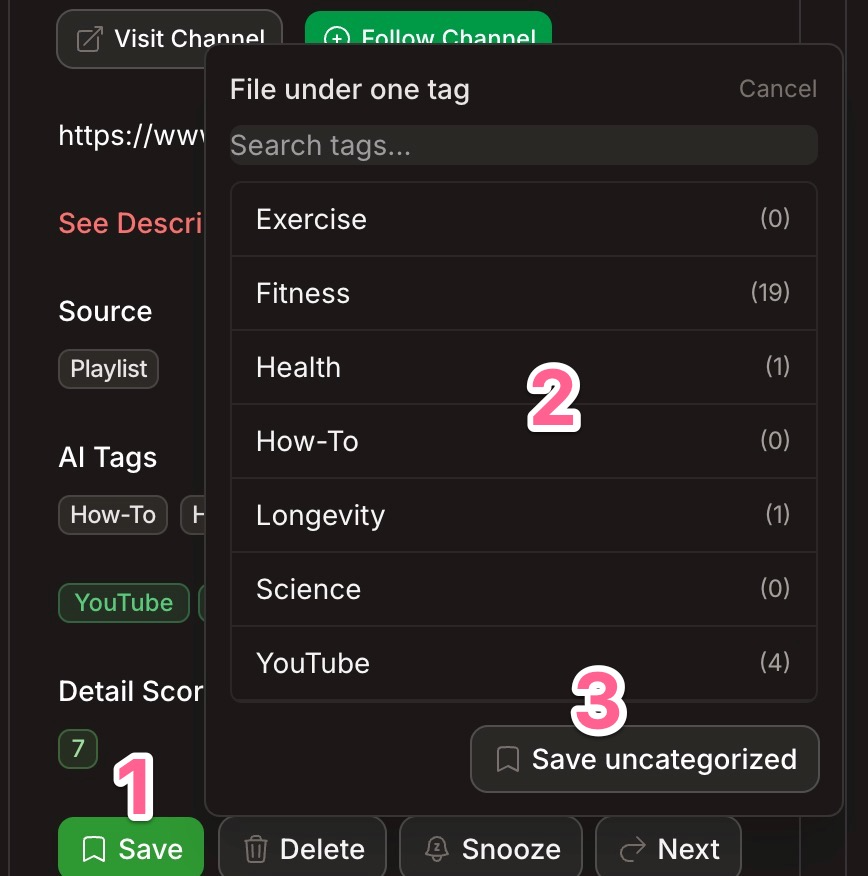
A small File under one tag menu opens with three things:
- Save — the button that opens the menu.
- A list of tags — pick one to file the video under it. The number next to each tag (for example,
Fitness (19)) shows how many videos you've already saved under it. - Save uncategorized — save the video without choosing a category.
That's it — pick a tag, or choose Save uncategorized. The video leaves your inbox and lands in your library immediately.
Filing under a tag vs. Save uncategorized
- File under a tag keeps your library organized from the start. The tags you see are drawn from the video's own tags (added automatically and any you've added yourself), so they're already relevant to what you're saving.
- Save uncategorized is the quick option when you just want to keep the video and sort it later. Uncategorized videos still show up in your library — they're simply grouped under Uncategorized until you move them.
Tip: If you find yourself saving every video from the same channel, TubeZen may offer to automate saves for that channel so future videos get filed for you.
Finding your saved videos
Click Saved Videos in the left sidebar (under YouTube) to open your library. The number beside it is your total saved count.
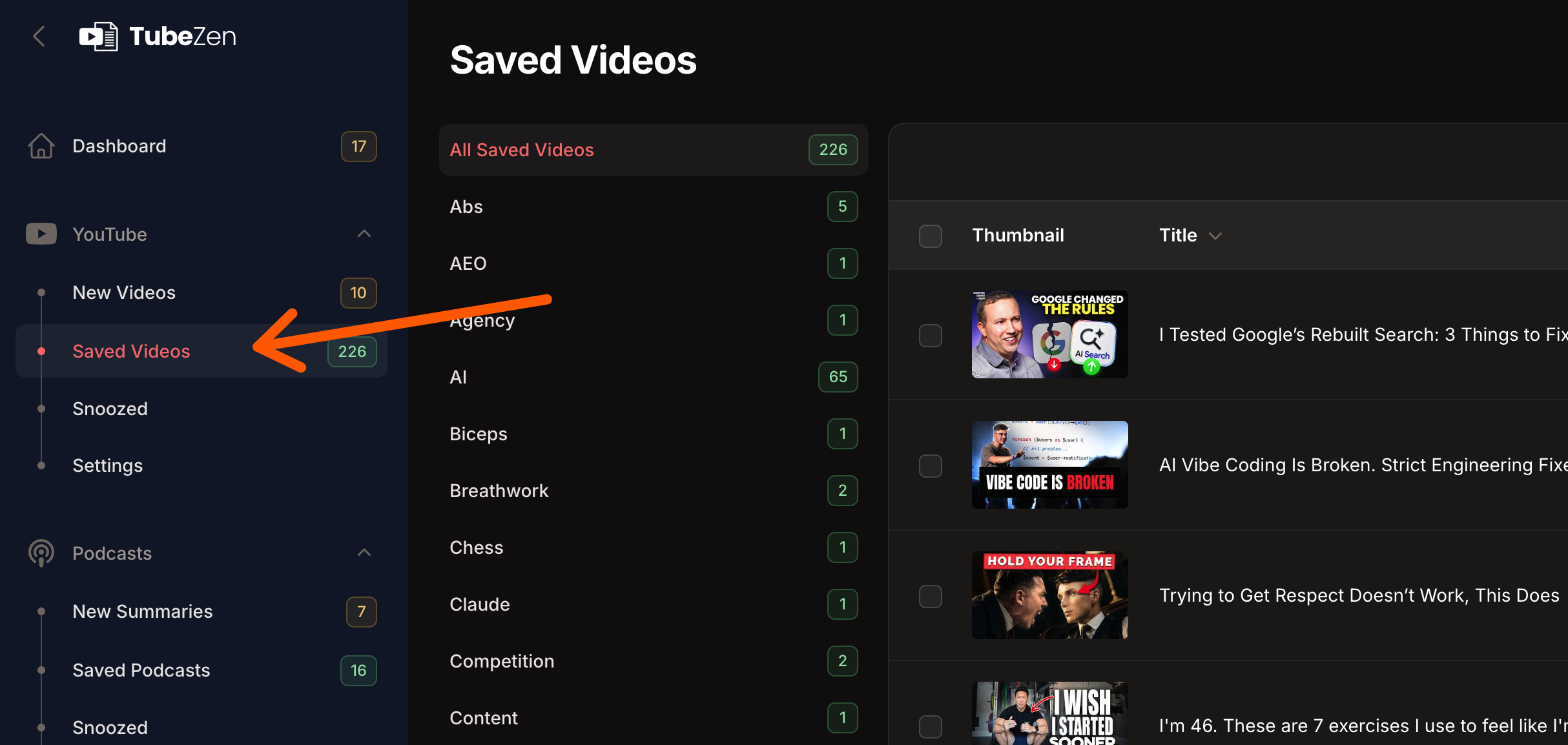
On the left is your tag rail:
- All Saved Videos shows everything you've saved.
- Each tag below it (such as
Abs,AI,Chess) shows the videos filed under that tag, with a count. - Uncategorized appears whenever you have videos saved without a category.
Click any tag to filter the list to just those videos. The main table shows each video's thumbnail and title, and a View button opens the full summary.
Searching and filtering
Use the Search box at the top right to find a saved video by title. Next to it, the filter icon opens a panel with more options.
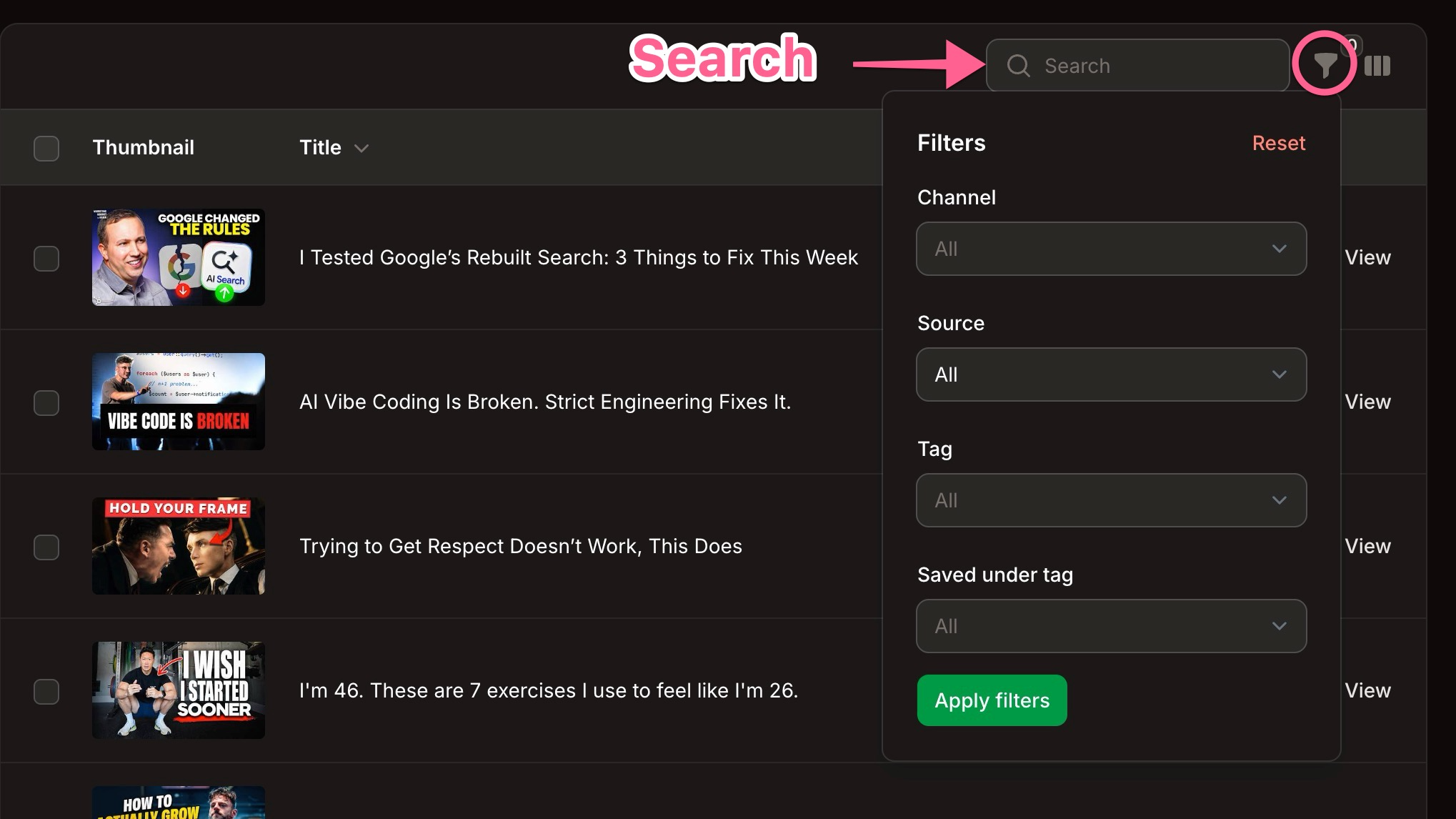
The filter panel lets you narrow your library by:
| Filter | What it does |
|---|---|
| Channel | Show only videos from a specific channel. |
| Source | Show only videos that came in a certain way (for example, a synced Playlist, a followed channel, or the Chrome extension). |
| Tag | Show videos that carry a given tag — including the automatic tags on each video. |
| Saved under tag | Show videos you specifically filed under that category when you saved them. |
Set the filters you want and click Apply filters. Use Reset to clear them.
Tag vs. Saved under tag
These two filters look similar but answer different questions:
- Tag asks "which videos are about this topic?" — it matches any video carrying that tag, whether or not you saved it under that name.
- Saved under tag asks "which videos did I file here?" — it matches only the category you chose at save time. This is the same grouping you see in the tag rail.
Moving videos between categories
Changed your mind about where a video belongs? Select one or more videos in the table using their checkboxes, then use the bulk Add to Category action to file them under a different tag. This is the easiest way to clean up anything you saved as Uncategorized.