How to Add Your API Key
To unlock unlimited summaries with Bring Your Own Keys, you first need an API key from an AI provider. TubeZen works with Google Gemini, Anthropic (Claude), and OpenAI — any key from these companies works. This guide shows you how to create one.
Which provider should you use?
Any of the three is a great choice, but here's how to decide:
- We recommend Google Gemini. It offers the best balance of low cost and high-quality output, which makes it the easiest place to start.
- Planning to use the Daily Podcast Summary? If you want TubeZen to create a private, personalized audio digest of your content, use a Google (Gemini) or OpenAI key. Anthropic doesn't offer a voice-output model, so it can't generate the audio.
The rest of this article walks through Gemini in detail, then gives the quick version for Anthropic and OpenAI.
Create a Google Gemini key (recommended)
You'll create the key in Google AI Studio.
1. Open the API Keys page and create a key
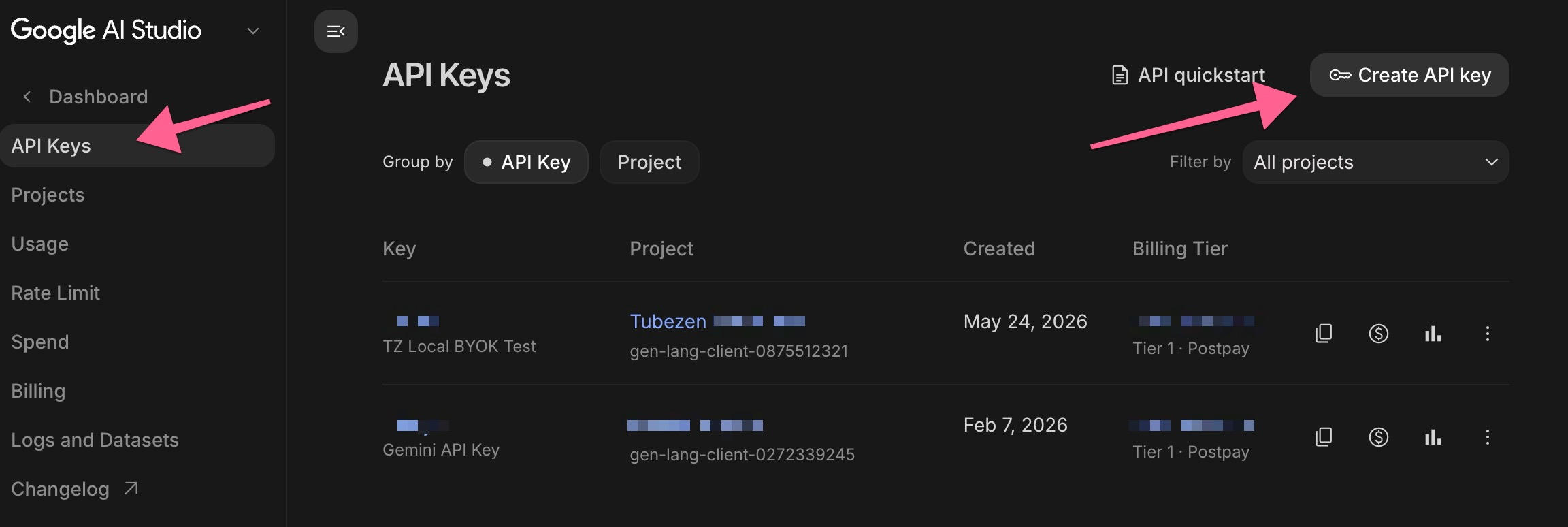
Go to aistudio.google.com/api-keys (or just search Google for "Create Google Gemini API key"). Click API Keys in the left sidebar, then Create API key in the top right.
2. Name the key and create it
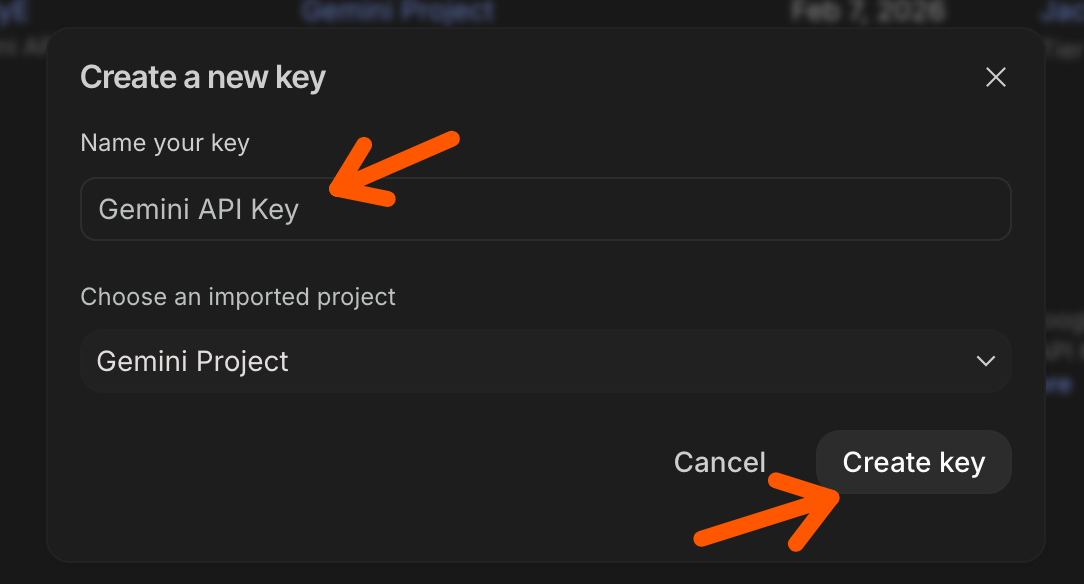
Give the key a name you'll recognize (for example, "TubeZen"), choose a project, and click Create key. Copy the key right away — Google only shows it in full once. You'll paste it into TubeZen in a moment.
3. Set up billing (important)
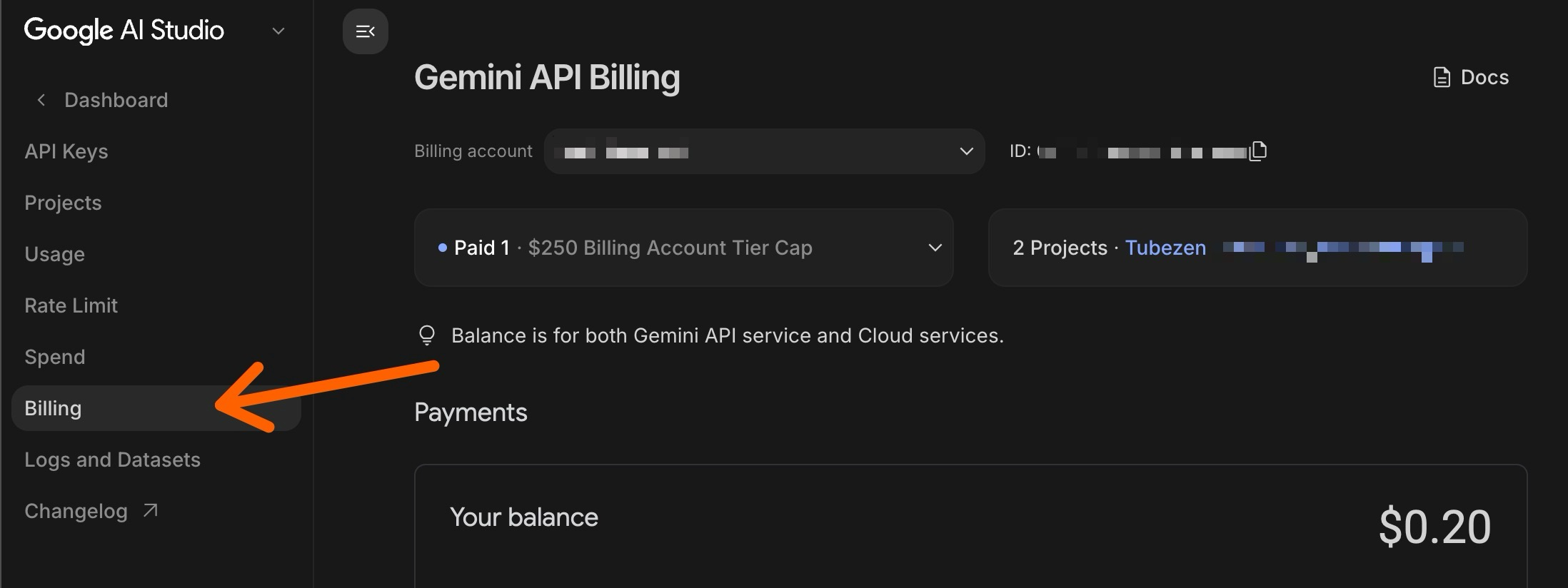
Gemini's free tier is heavily rate-limited, so set up paid billing so your key works reliably for summarizing. In the left sidebar, click Billing and make sure your project is attached to an active, paid billing account.
4. Set a monthly spend cap
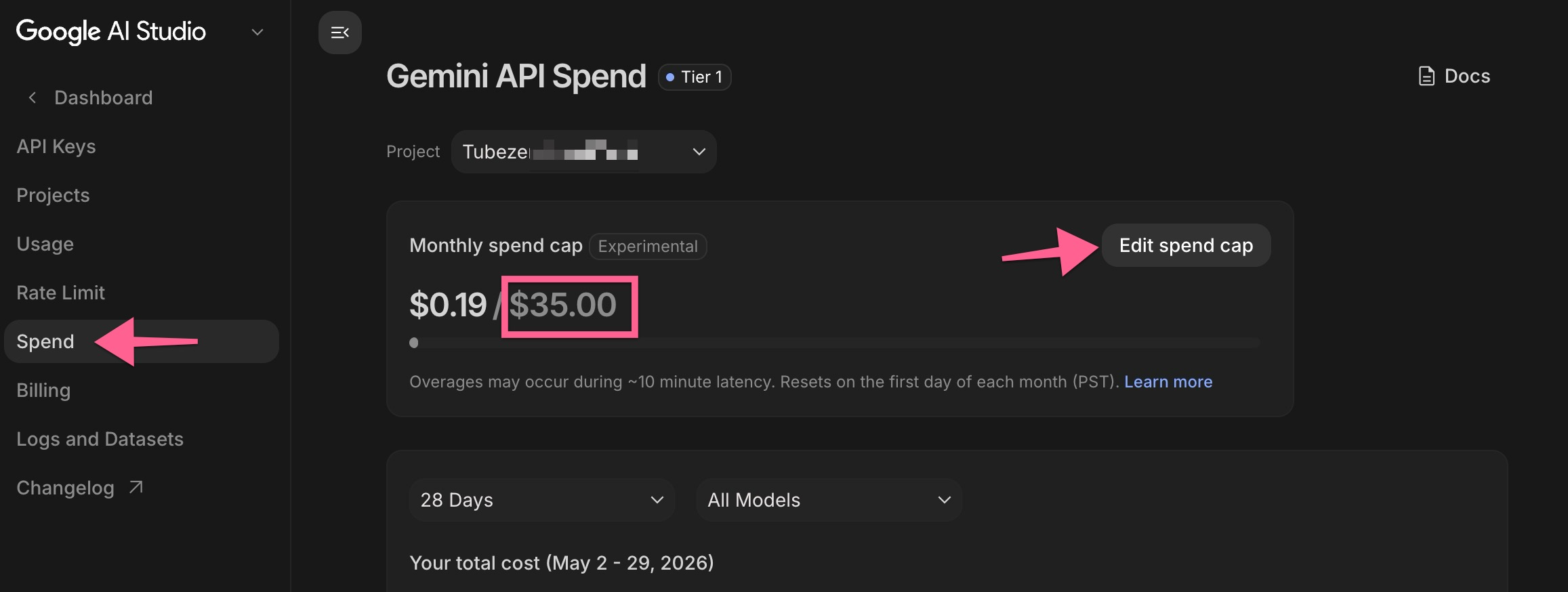
This is the safety net that keeps your bill predictable. In the sidebar, click Spend, then Edit spend cap, and set a monthly spend cap. We recommend starting at $35 per month — more than enough for heavy summarizing, and you can raise or lower it any time.
That's it — your Gemini key is ready to add to TubeZen.
Create an OpenAI key
- Go to platform.openai.com/api-keys and sign in (or search Google for "Create OpenAI API key").
- Click Create new secret key, name it, and copy the key — OpenAI only shows it in full once.
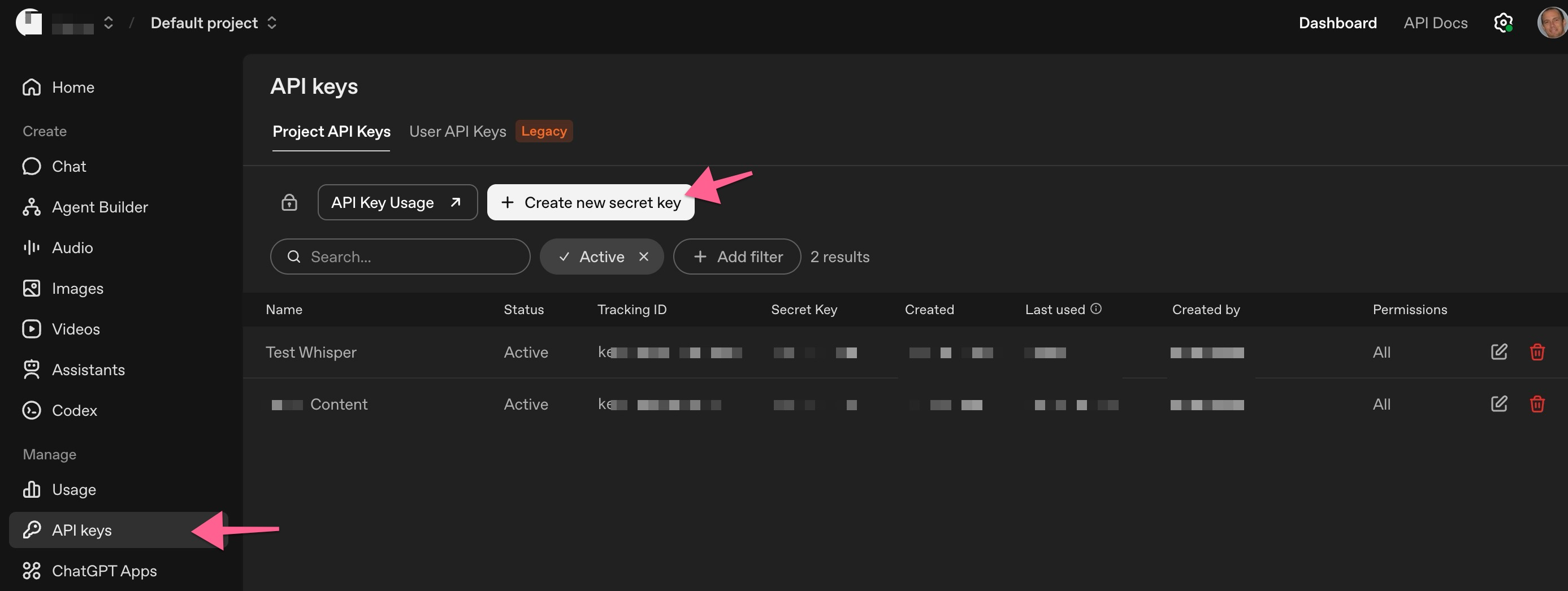
- Set up billing (important). Under Settings → Billing, add a payment method and some credit — the key won't work until your account can be billed.
- Set a spend limit. It's a good idea to cap your monthly usage as a safety precaution. TubeZen shouldn't need more than about $35 per month, but your actual cost depends on your usage, so set a limit you're comfortable with.
Create an Anthropic (Claude) key
- Go to platform.claude.com/settings/workspaces/default/keys and sign in (or search Google for "Create Anthropic API key").
- Click Create key, name it, and copy the key — it's shown in full only once.
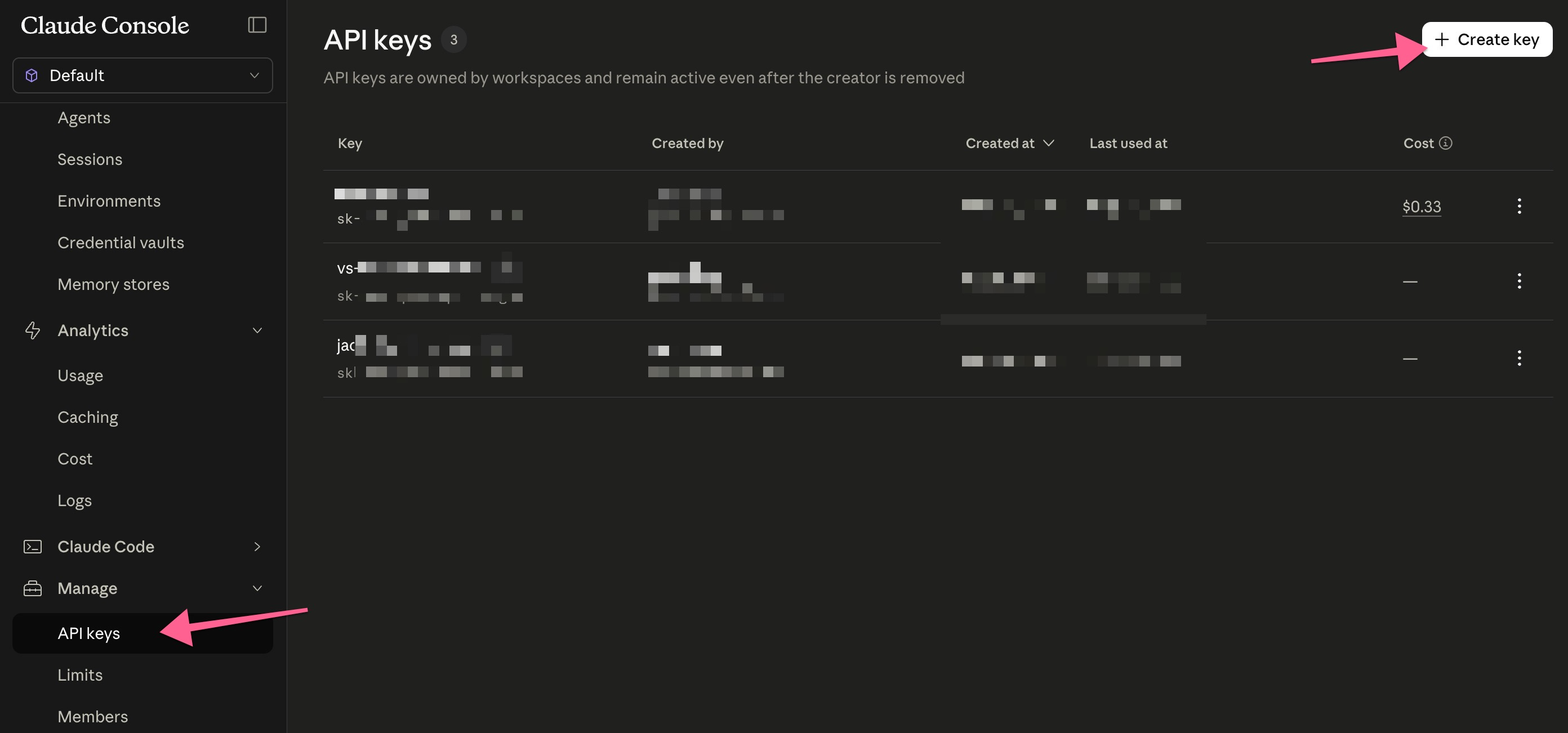
- Set up billing. Add a payment method and credit in the console — the key won't work without it.
- Set a spend limit. Under Manage → Limits, cap your monthly usage as a safety precaution.
Anthropic has no voice-output model, so a Claude key can't power the Daily Podcast Summary audio. Use Google or OpenAI if you want the audio digest.
Best Practices for API Keys
A couple of habits keep your costs predictable and your spend easy to read — no matter which provider you choose.
Set a spend limit
It's always good practice to set a spending limit on any of your API keys, and we recommend a spend limit of $35. Most users can comfortably afford a bill of $35 per month, even though heavy users of TubeZen should get nowhere near that amount.
In fact, heavy TubeZen users will probably land in the $1 to $5 per month range — but setting your spend limit at $35 is a good starting point. It gives the key plenty of room while staying within a comfortable budget.
Create a TubeZen-specific key
Make a separate key that you use only for TubeZen. Then the spend you see for that key is TubeZen's spend, full stop. If you reuse one key across many projects or platforms, it's easy to assume (incorrectly) that the usage you're looking at is all from TubeZen.
Add your key to TubeZen
Once you've copied a key, open Integrations → API Keys in your dashboard, click Add a key, choose the provider, and paste it in. For the full add, test, and manage flow, see Bring Your Own Keys (BYOK).