Your Dashboard
Your dashboard is the home base for everything TubeZen summarizes. Every YouTube video and podcast episode we process for you lands here, newest first, so you can skim, read, and catch up in a fraction of the time it would take to watch or listen.
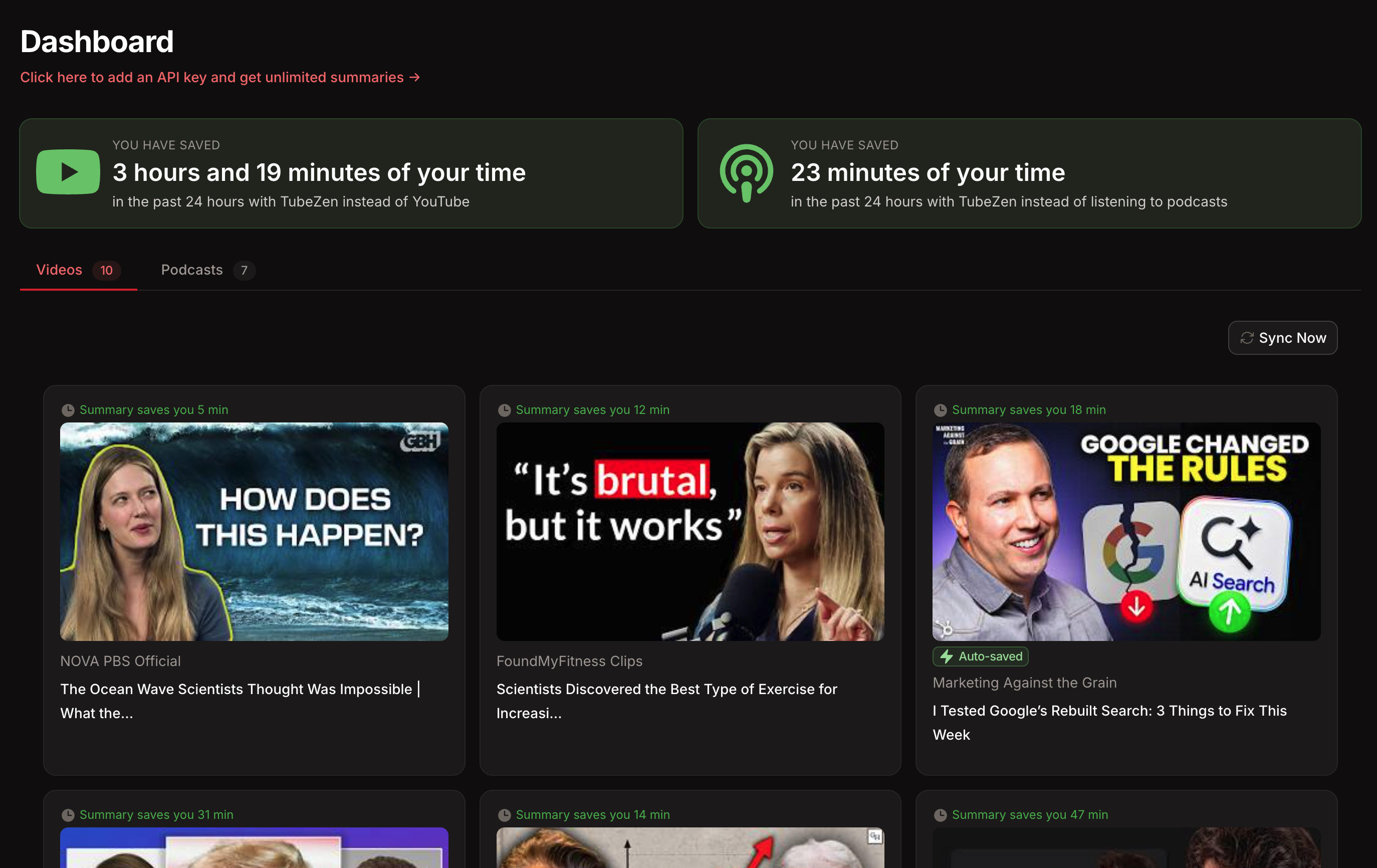
See how much time you've saved
At the top of the dashboard, two cards show how much time TubeZen has saved you in the past 24 hours:
- Videos — the time you'd have spent watching on YouTube.
- Podcasts — the time you'd have spent listening to episodes.
Instead of watching or listening end to end, you read the summary in a couple of minutes. The more you use TubeZen, the more this adds up.
Review videos and podcasts in one place
Below the time-saved cards are two tabs:
- Videos — summaries of YouTube videos.
- Podcasts — summaries of podcast episodes.
Switch between them to focus on one type at a time. Every item appears as a card with its thumbnail, the channel or show name, the title, and a "Summary saves you X min" badge so you can tell at a glance how much time each one is worth.
Need the latest right now? Click Sync Now to check your followed channels and playlists for new uploads immediately, instead of waiting for the next scheduled check.
Open a summary
Click any card to open its full summary. You'll see:
- The original video or episode, embedded so you can play it — and speed it up to 1.25x–2x — without leaving TubeZen.
- A structured summary: an Overview (who, what, and why it matters), Key Takeaways, and Steps, each with clickable timestamps that jump the player straight to that moment.
- AI tags that categorize the content, plus quick Visit Channel and Follow Channel buttons.
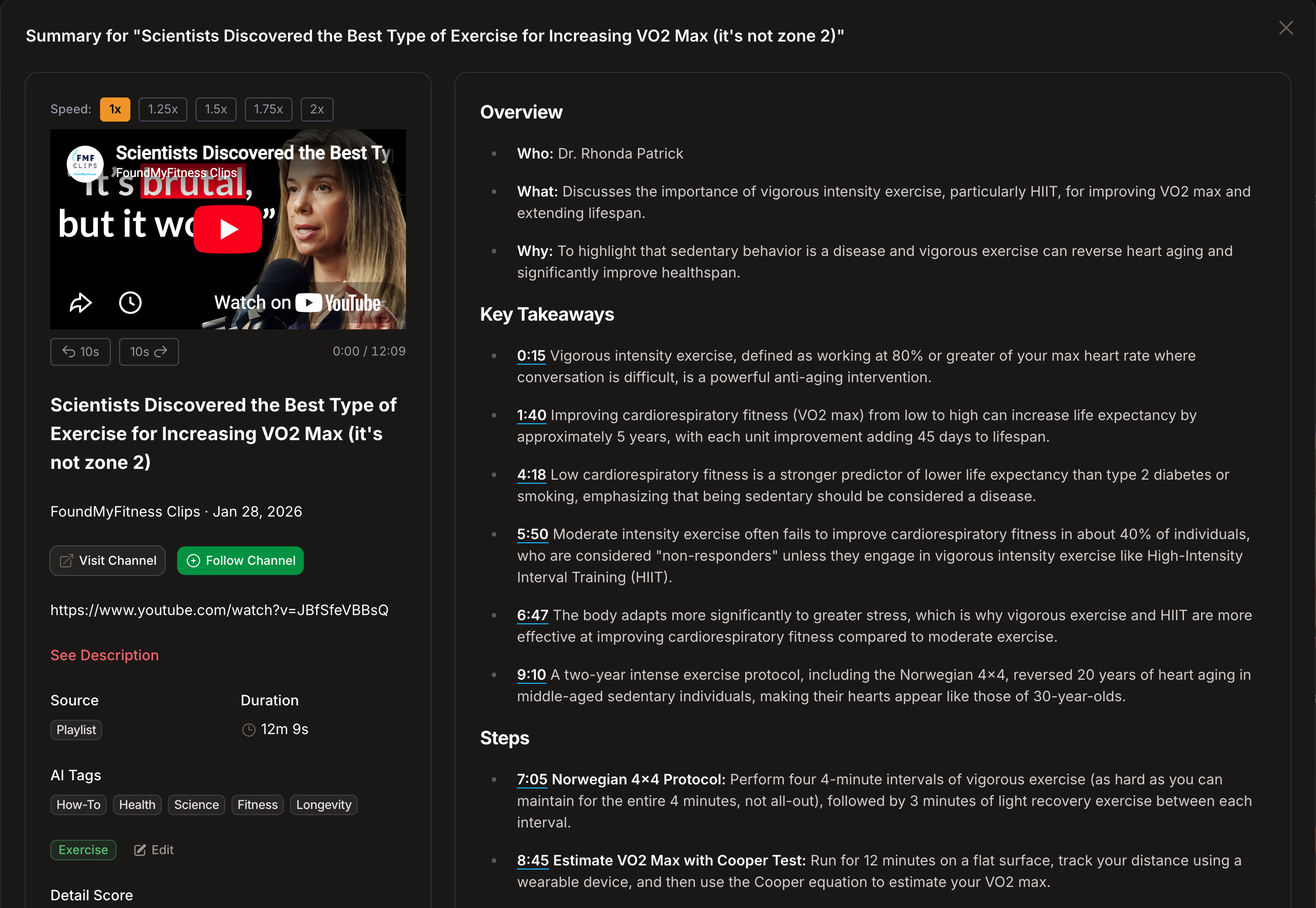
Read only the parts you care about, jump to the exact moment in the video with a timestamp, and move on — that's the time saved counting up on your dashboard.
Where do these summaries come from?
Your dashboard fills up automatically from the channels and playlists you follow, plus anything you send in with the Chrome extension. New to TubeZen? Start with Getting Your YouTube Videos into TubeZen for the three ways to fill your dashboard.